What is Smart Fix?
Smart Fix is a feature in Accutics Standardize that helps you quickly auto-correct invalid values in your bulk create table. Instead of fixing errors one by one, you can use Smart Fix to resolve multiple issues at once—saving you time and ensuring cleaner data.
How Does Smart Fix Work?
Global Button:
When errors are detected in your bulk create table, and you have edit rights, a “Smart Fix” button appears at the top of the table.
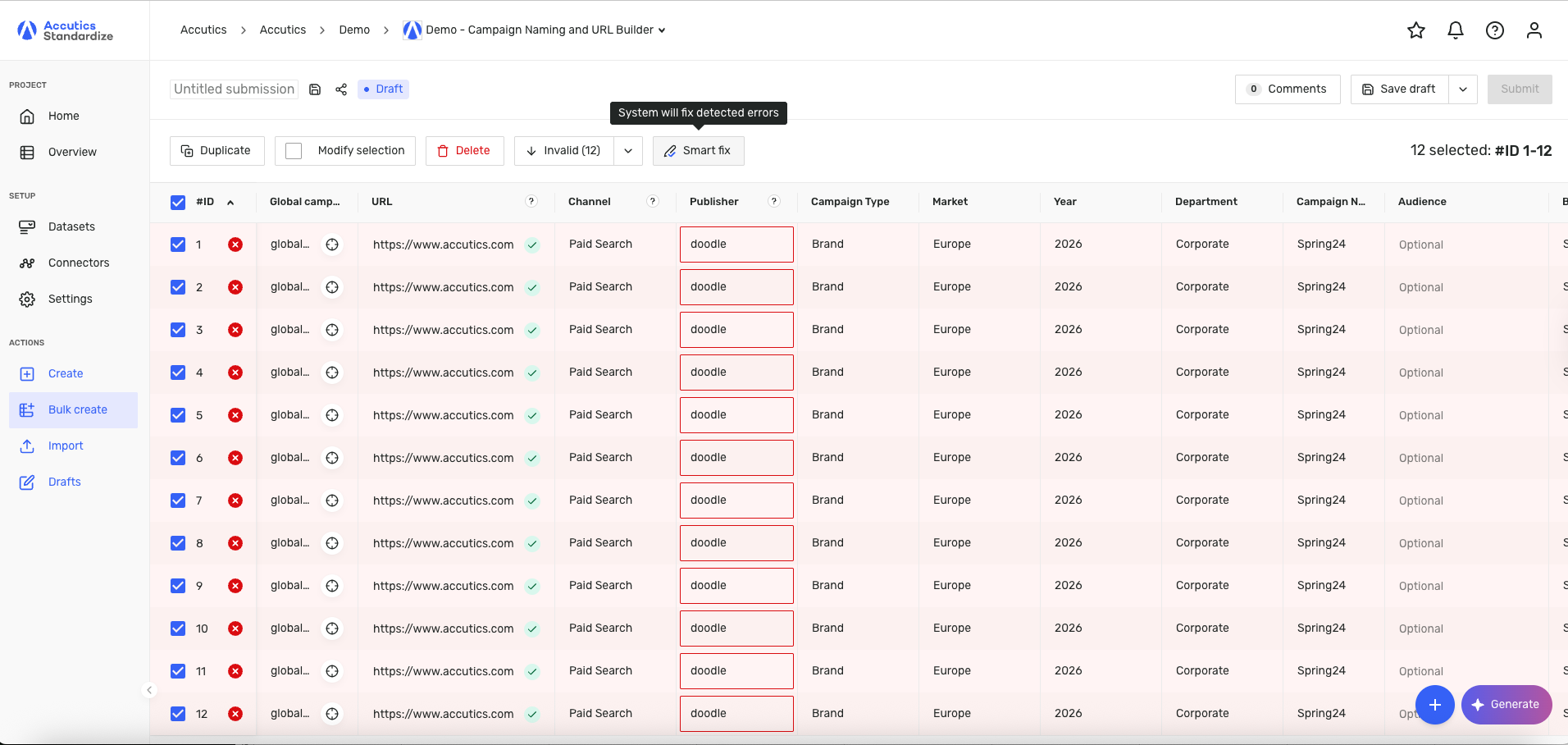
Row Selection:
You can apply Smart Fix to all rows or select specific rows with errors and use the action button next to other bulk actions (duplicate, modify, delete).
Confirmation:
Before changes are made, you’ll see a confirmation modal showing how many rows will be fixed.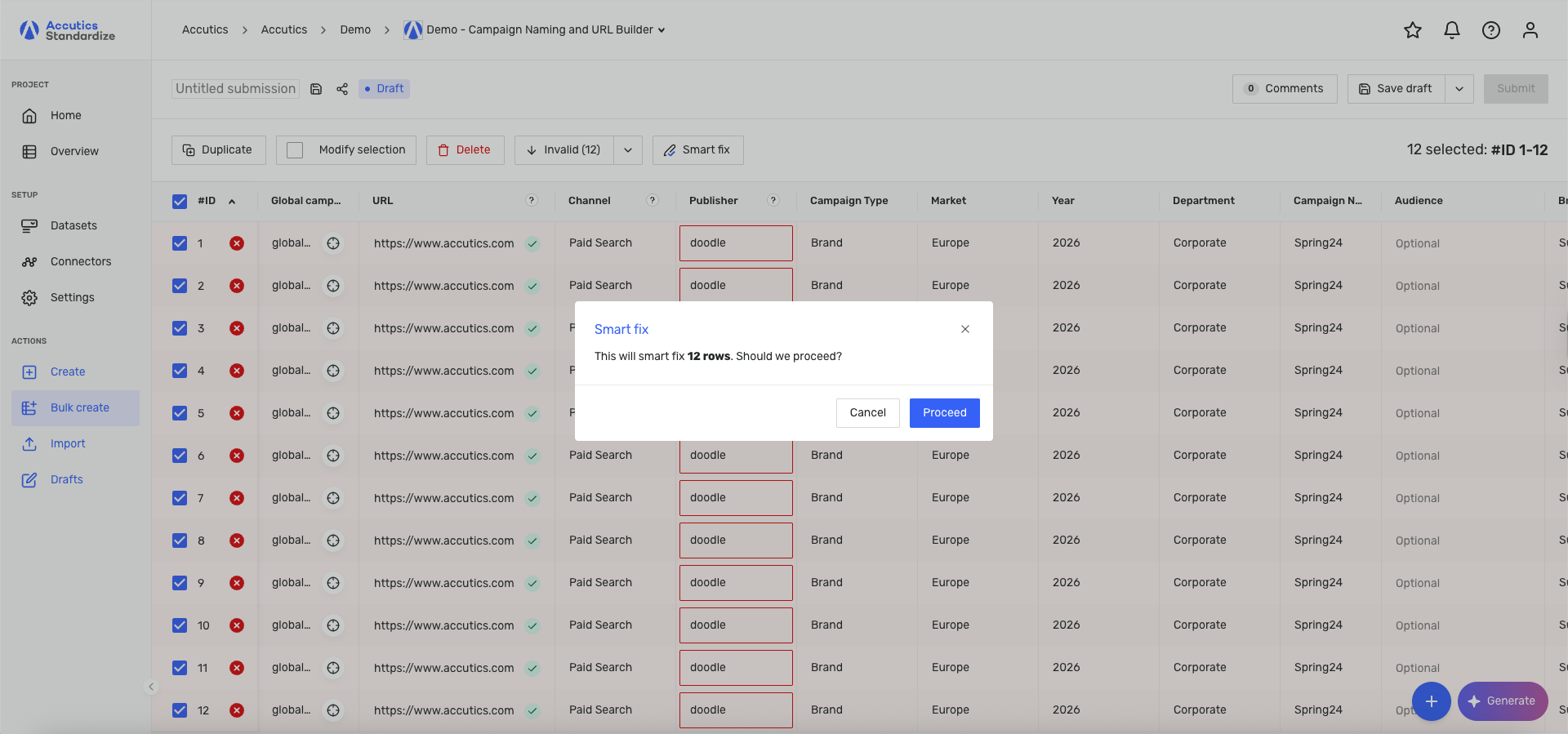
Processing:
The table and button will show a loading state while Smart Fix is running.
Results:
Once complete, you’ll see a success message, and fixed cells will be marked with a star icon.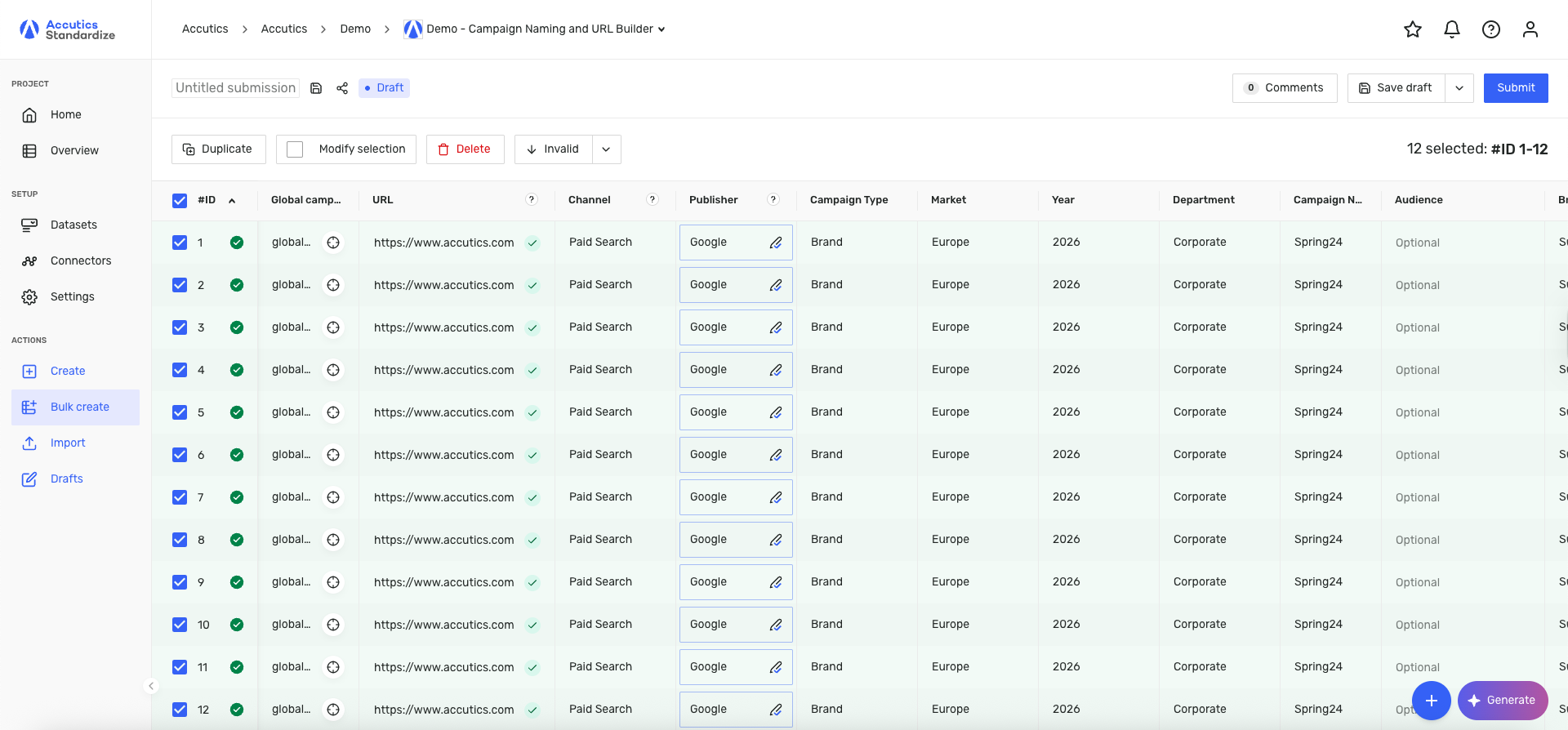
Undo:
You can revert any Smart Fix by opening the dropdown in a cell and selecting “Restore to original.” You can also restore multiple rows at once using the “Modify selection” option.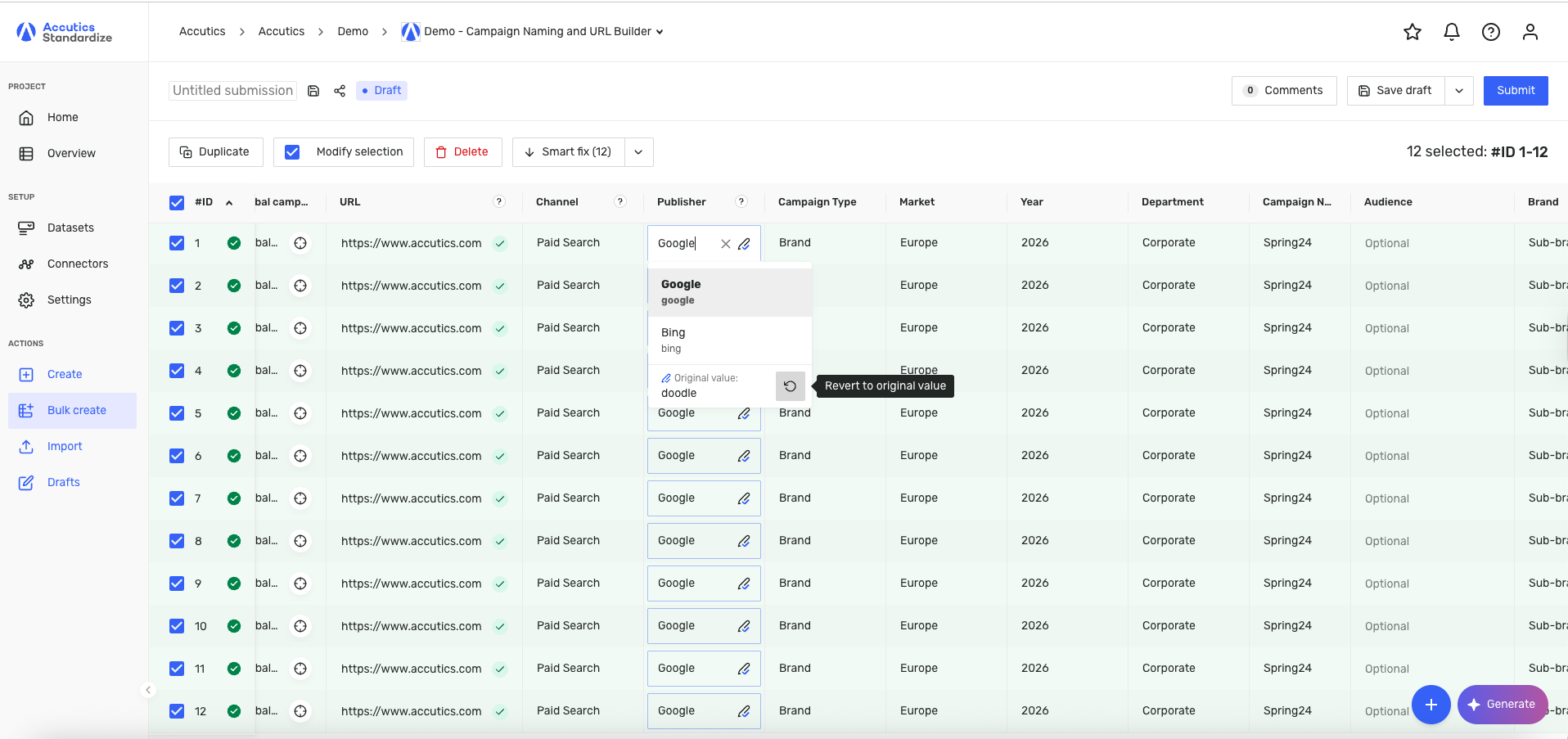
What Does Smart Fix Correct?
Smart Fix currently works on dropdown fields (support for date and reference fields is coming soon).
It only corrects “red” errors that are not empty (e.g., typos, ineligible values).
If a value can’t be fixed (e.g., gibberish), you’ll see a message: “Rows corrected where possible.”
Feature Details & Limitations
Edit Rights Required:
Only users with edit permissions can use Smart Fix. View-only users will not see the button.No UI Actions During Fix:
While Smart Fix is running, all other actions (delete, duplicate, modify) are temporarily disabled.Sorting:
You can sort your table to show rows that have been smart fixed.No AI/Token Limitations:
This version of Smart Fix does not use AI tokens and is available to all eligible users.
Best Practices
Review the confirmation modal before proceeding.
Use the “Restore to original” option if you want to undo any changes.
For large tables, use row selection to target only the rows you want to fix.