Using AI to Generate Records in Bulk
Overview
The AI Generate Records feature in Accutics Standardize helps you quickly create multiple records in your bulk create table using a simple chat interface. Instead of manually entering each row, you can ask the AI to generate them for you—saving time and reducing errors.
How to Use AI Generate Records
1. Open your draft
Navigate to the bulk create table where you want to add records.
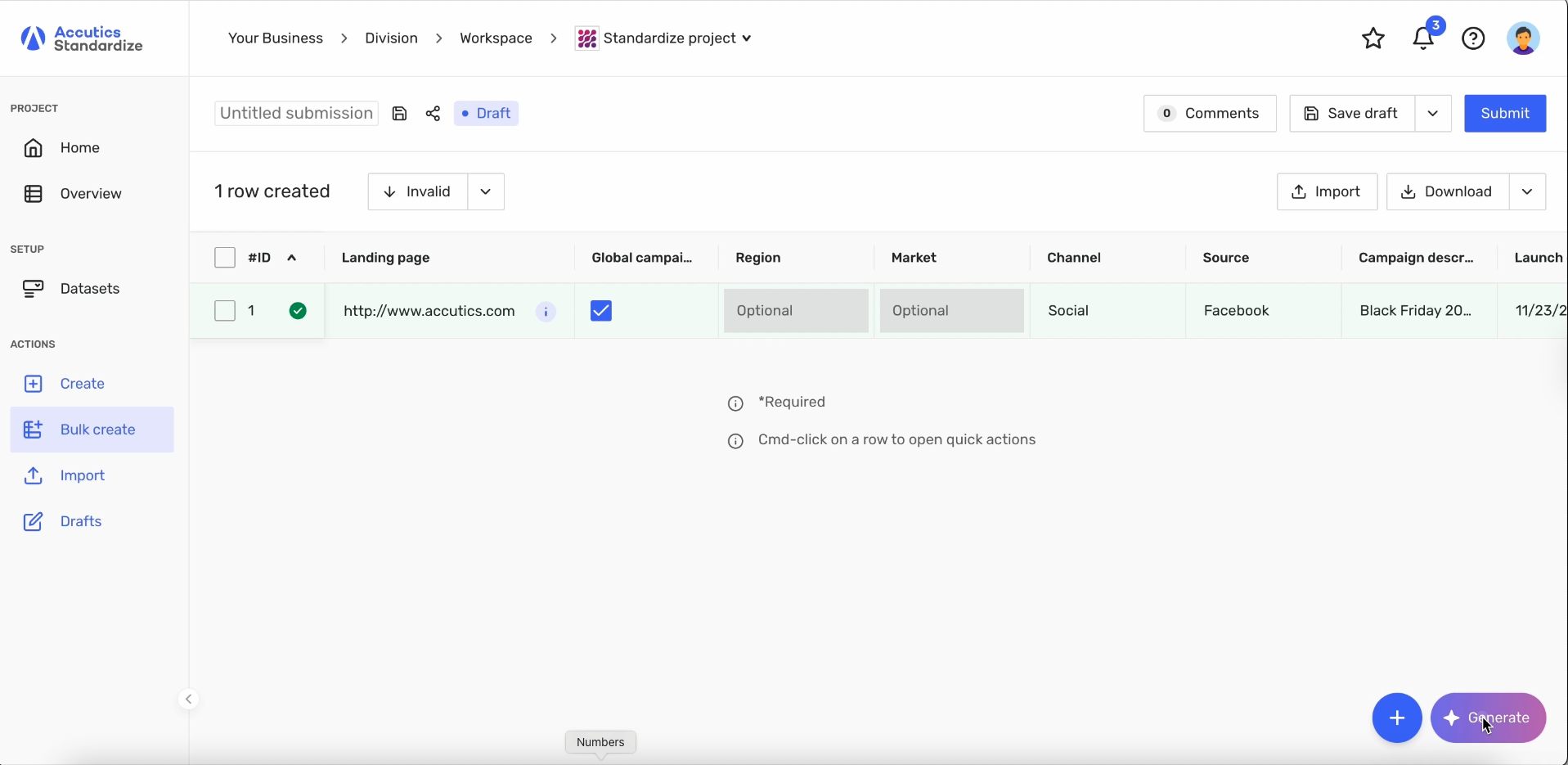
2. Click the AI button
If your account has the feature enabled, you’ll see an “AI” button. Click it to open the AI chat window.
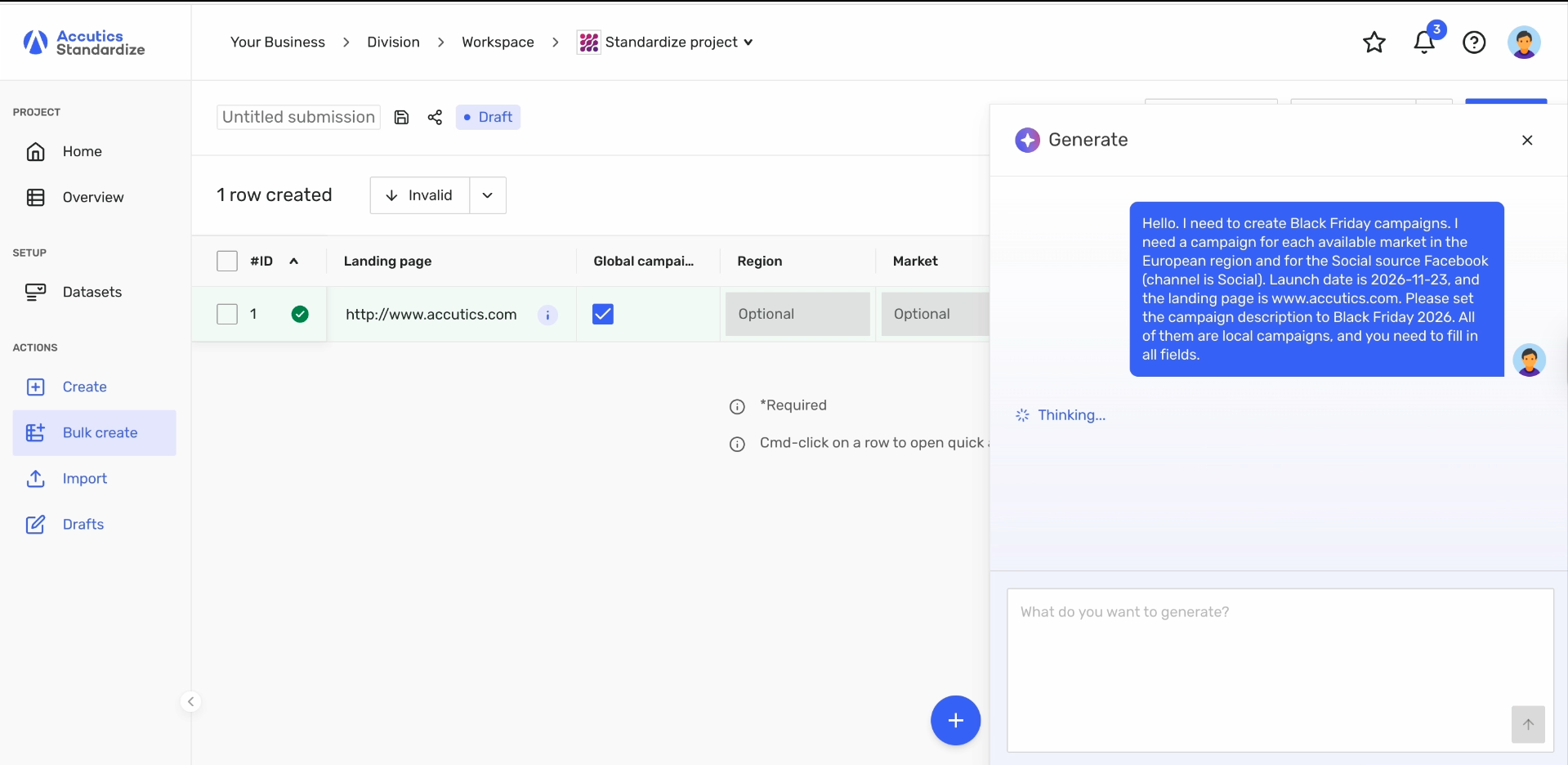
3. Enter your prompt
Type what you need (e.g., “Create 10 campaign rows with today’s date”). The AI will process your request.
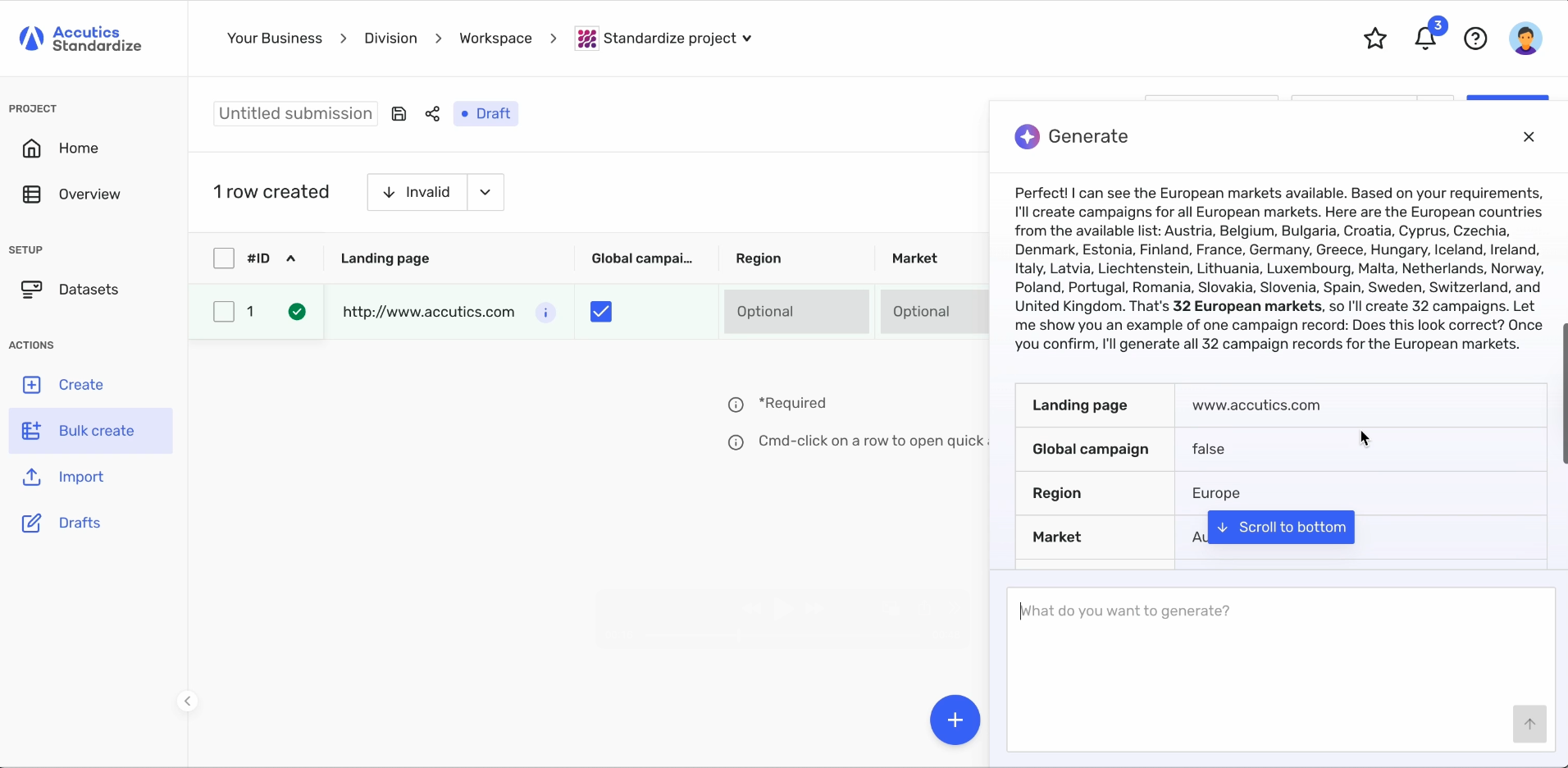
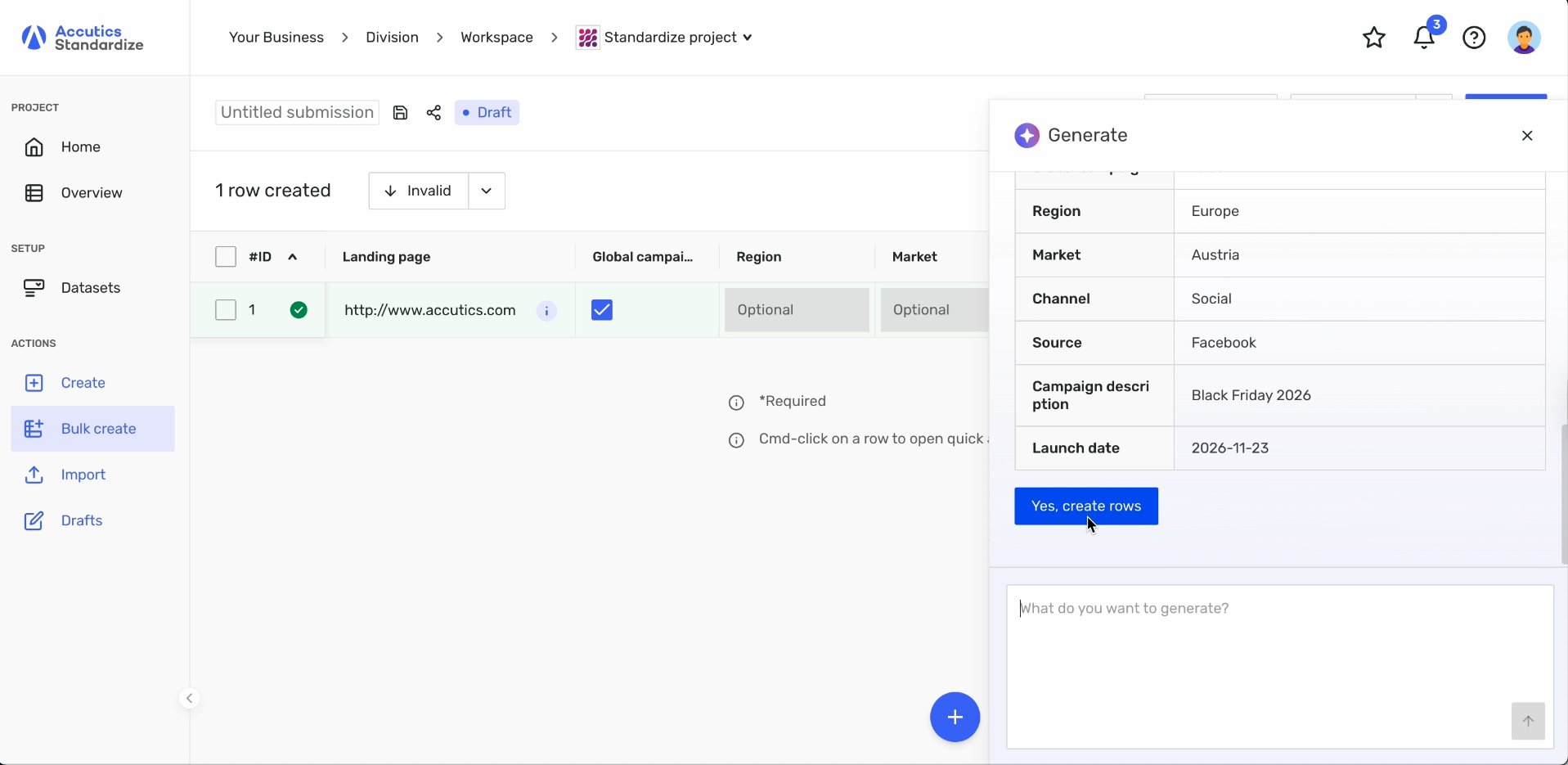
4. Review and confirm
The AI will show a preview of the records it plans to create. Click “Yes” to add them to your table, or “No” to cancel.
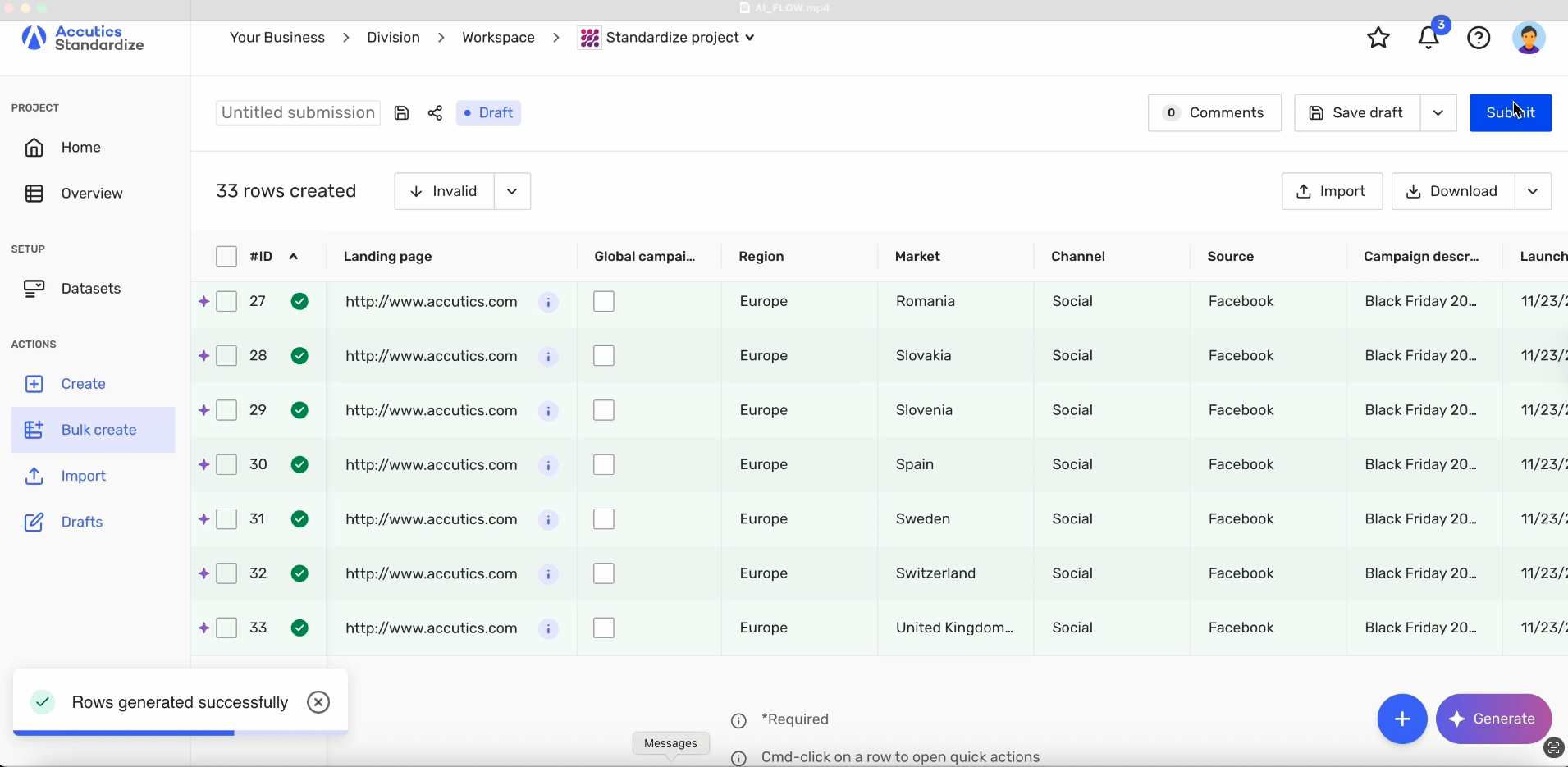
5. See your AI-generated rows
Rows created by the AI are marked with an icon for easy identification (note: this icon disappears if you leave and re-open the draft).
Tips for Best Results
Be specific: Clearly state how many rows you want and any required field values.
Paste templates: If you have a filled template, you can paste it into the chat for faster results.
Check before confirming: Always review the AI’s suggestion before adding rows.
Feature Details & Limitations
Who can use it?
Anyone with access to the draft can use the AI chat. All users see the same chat history.Prompt restrictions:
You can’t send empty prompts.
The AI only responds to bulk record creation tasks.
If your prompt is unclear, the AI will ask for clarification.
Limits:
The AI can create up to 1,000 rows at a time.
If a dataset is too large, the AI will skip it and let you know.
The AI can only create new rows, not edit existing ones.
How Does It Work?
When you access the bulk create feature, you can open a chat to prompt the AI to generate rows.
The AI evaluates your project configuration and available datasets to determine the best data to return.
If anything is unclear, the AI may ask clarifying questions.
The AI presents a preview of the records it intends to generate and asks for your confirmation.
Once confirmed, the records are added to the bulk create table for your review and final adjustments.
You can prompt the AI multiple times to generate additional sets of records as needed.
Records are never created without your confirmation, and you can always review and edit before submitting.
Important Notes
The AI will only assist with generating records. If prompted with unrelated tasks, it will inform you of its limitations.
By default, all AI-powered features are disabled for your account and can only be enabled by Accutics after agreement with your organization.